// Workflow
How to create Instagram Carousel with Claude (No Paid AI Tools)
Build a ready-to-post Instagram carousel — cover, content slides, CTA — as coded PNG mockups using Claude, with zero paid AI image or video tools required.
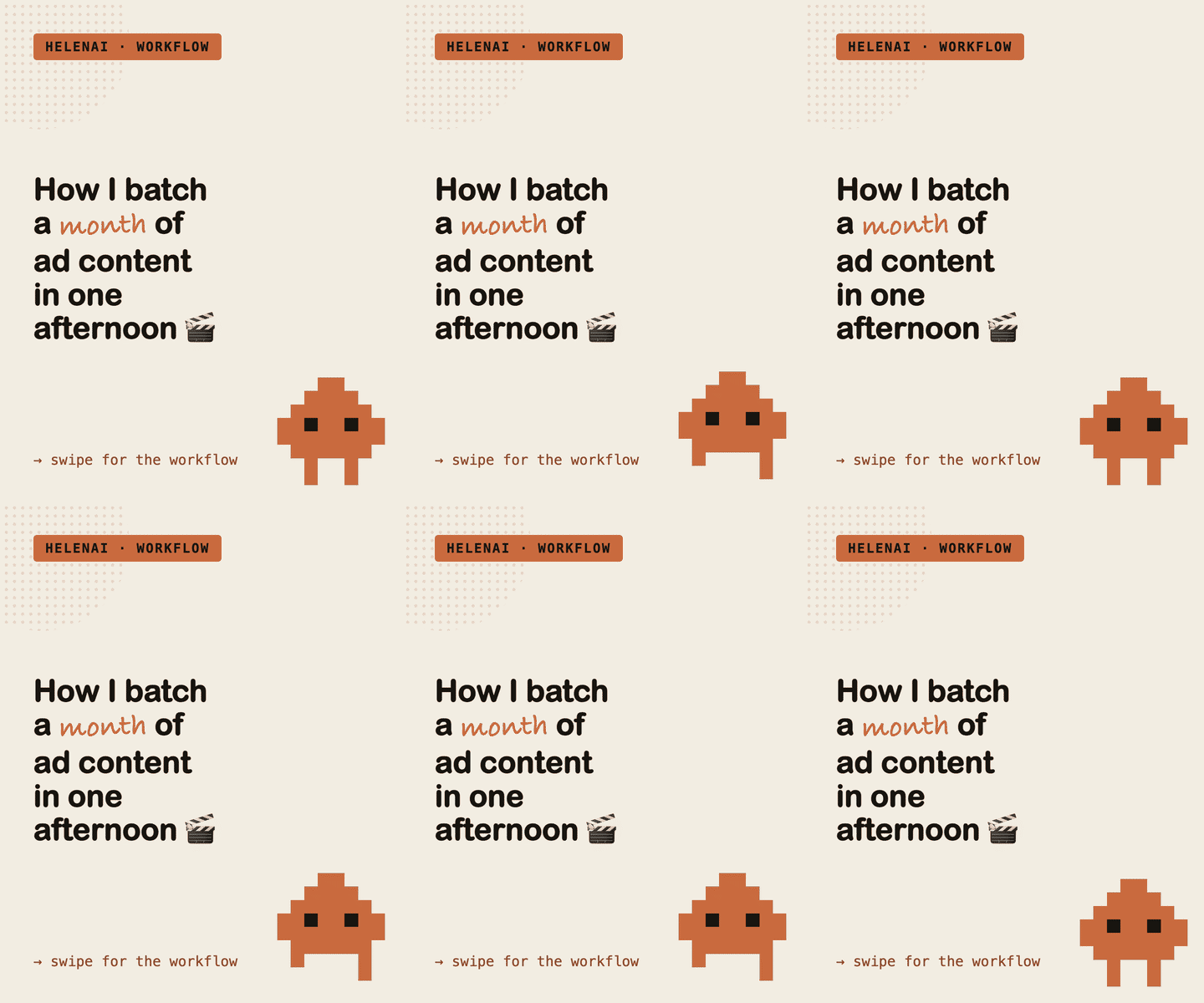
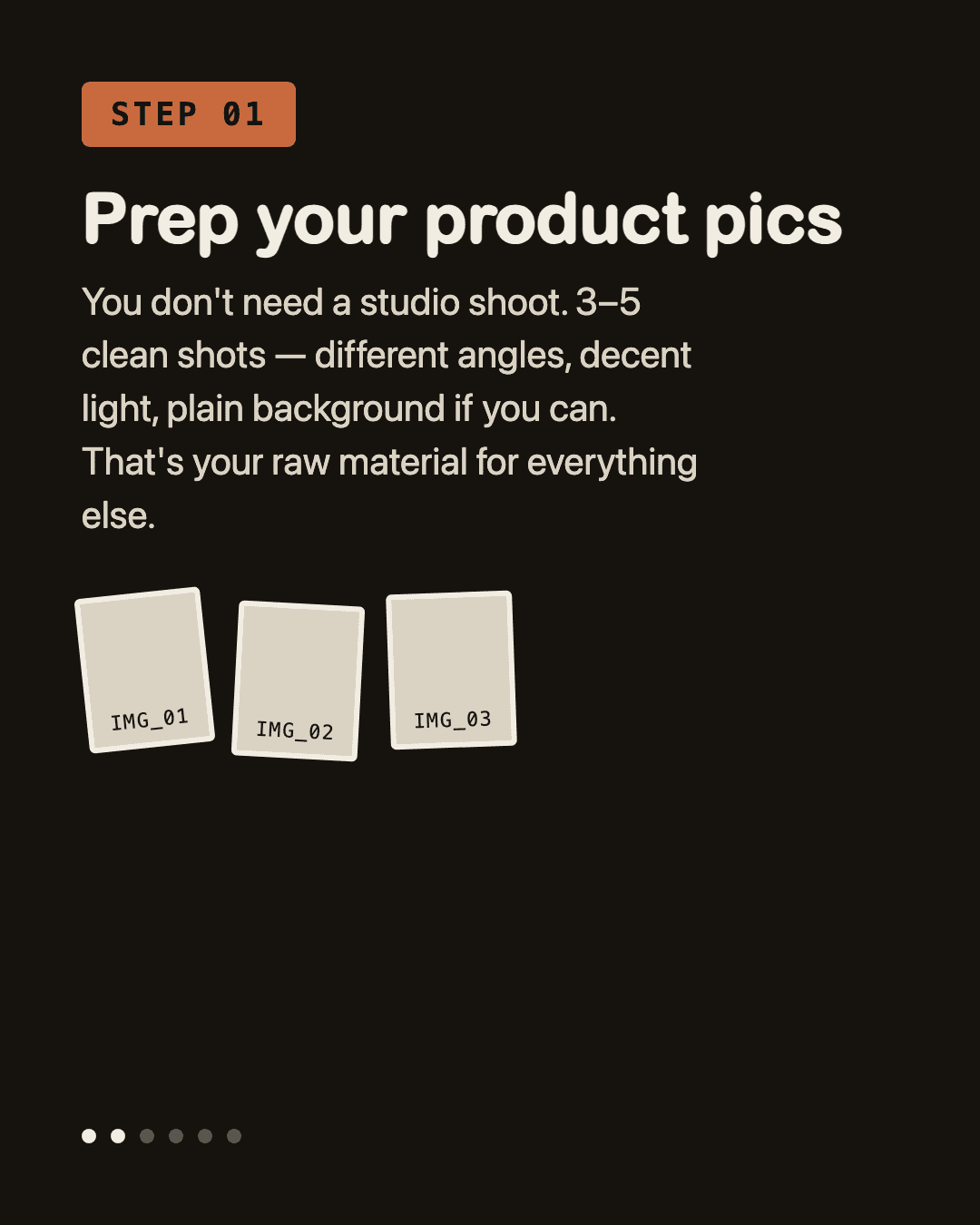
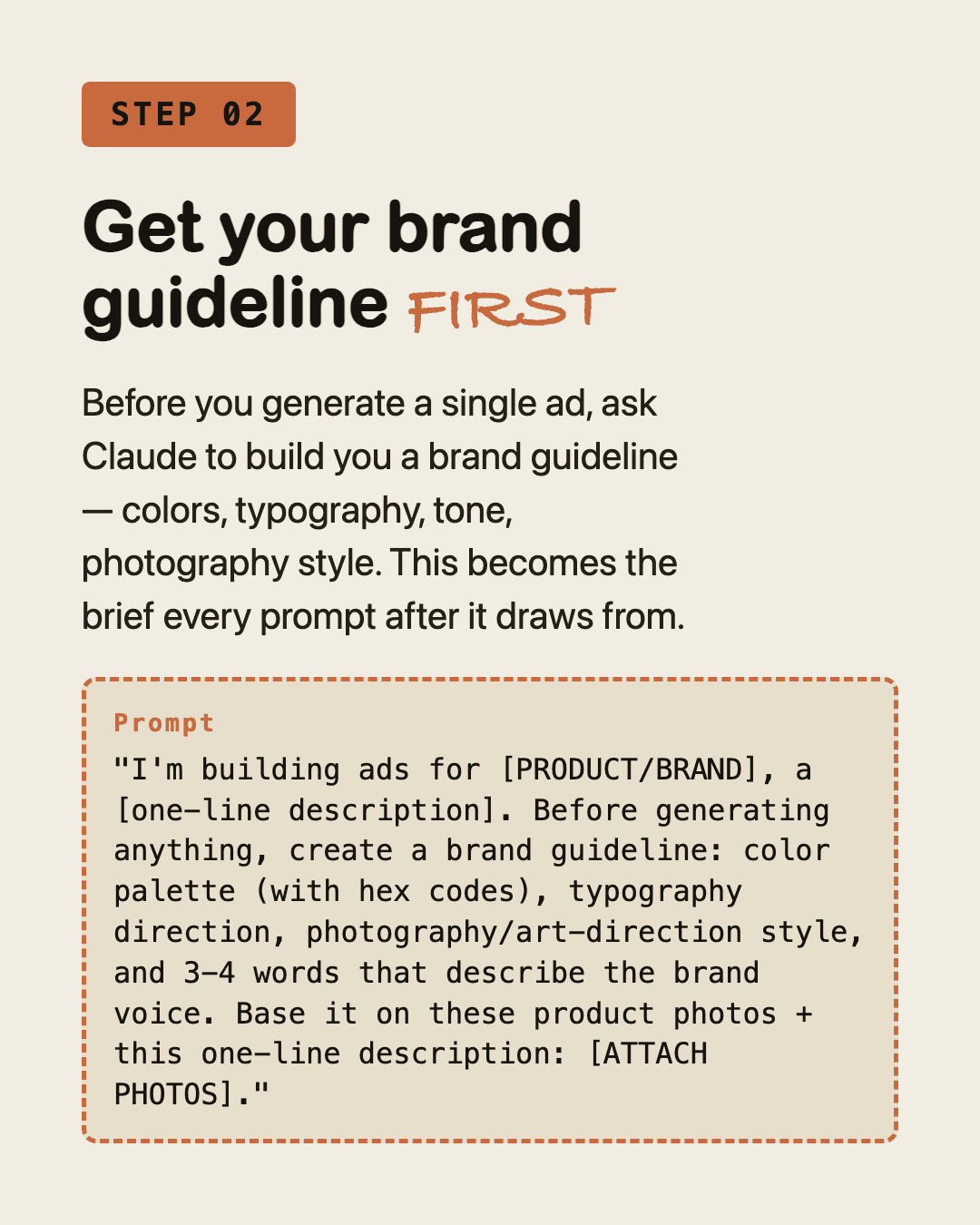
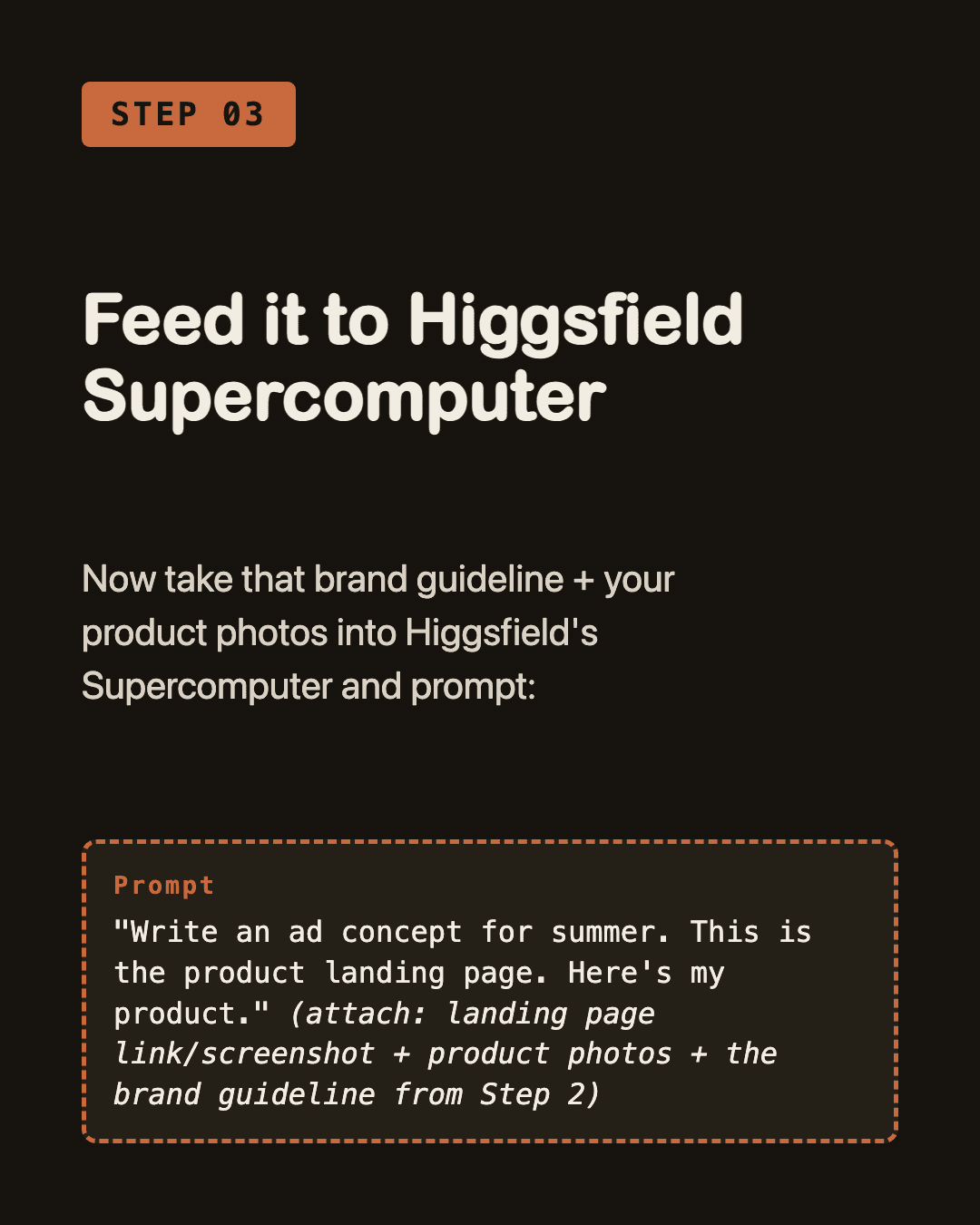
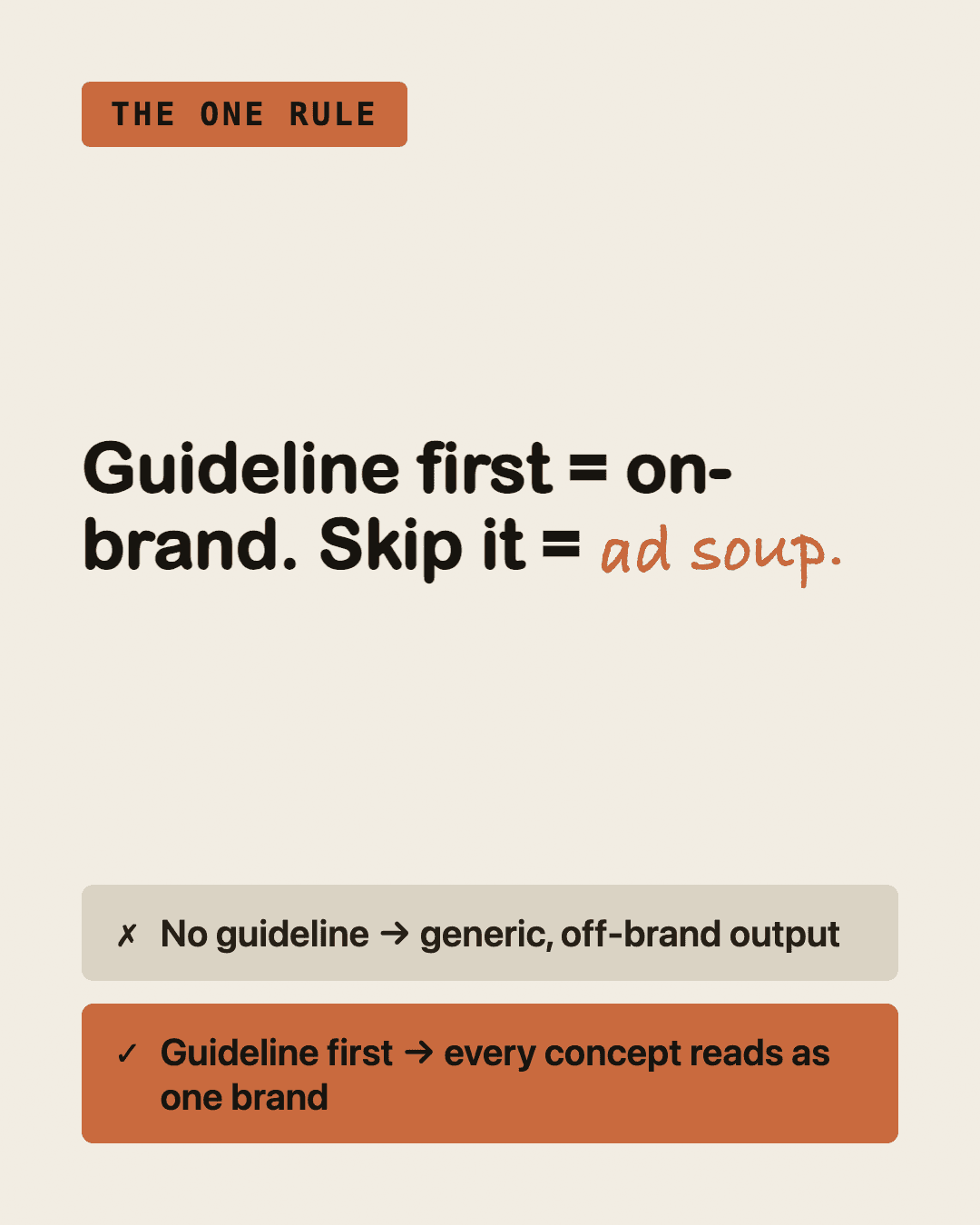

Demo Instagram Carousel created by Claude
This is the fast, zero-extra-tool way to build an Instagram carousel with Claude: a cover slide, a few content slides, and a closing CTA slide, built as coded PNG mockups — solid colors, system fonts, simple shapes. No photoreal AI-generated backgrounds, no AI-animated characters. It won't look like a design agency made it, but it'll look intentional and on-brand, and you can make one in under an hour with nothing but a Claude account that can run code.
If you later want a more polished version — textured backgrounds, an animated mascot, etc. — that needs an AI image tool (like Nano Banana, Flux, or Recraft) and an image-to-video tool (like Higgsfield, Kling, or Runway) connected. Skip that entirely for now; this guide is the fast version.
What You Need
- A Claude account with code execution enabled (Claude Code, or claude.ai with Artifacts/code) — something that can run code and hand back real image files, not just describe a design in chat.
- Your brand colors (hex codes, or just "navy and orange") and a rough type direction.
- Your slide copy, written out ahead of time.
Step 1 — Get a Brand Guideline (Skip If You Already Have One)
Ask Claude:
I'm building a carousel for [BRAND], a [one-line description]. Create a
brand guideline: color palette (hex codes), typography direction, and
3-4 words describing the brand voice. Base it on [attach reference
photos/screenshots, or just describe the vibe you want].
Step 2 — Write Your Slide Copy First
Decide the slide count and exactly what each one says before asking for any design. Don't let Claude write the message and design the layout in the same breath — nail the words first. A structure that works for most "here's how to do X" content:
- Cover — the hook headline
- Step 1
- Step 2
- Step 3 (add more steps if needed)
- Why it matters / the one thing people get wrong
- Proof — a result, example, or before/after
- CTA — what you want people to do next
Step 3 — Ask Claude to Draw the Slides With Code, Not "Generate an Image"
This is the one move that avoids needing any external AI image tool. Don't ask Claude to "generate an image of a carousel slide" — that routes to an AI image model you probably don't have connected. Instead, ask it to build the slides as code:
Build me a [N]-slide Instagram carousel at 1080x1350px each, using
[brand colors from the guideline] and [type direction]. Write a script
that draws each slide and saves it as a numbered PNG (1-cover.png,
2-....png, ... N-cta.png) in [a folder you choose].

Slide copy:
1. Cover: "[headline]"
2. Slide 2: "[text]"
...
N. CTA: "[text]"

Keep it clean: solid or soft-gradient background, bold headline,
readable body text, maybe a small badge/pill for labels. No photoreal
images — this is a fast, on-brand mockup, not final art.
Then have it actually run the script so you get real PNG files back — not just review the code.
Step 4 — Review Before Posting
- Cover slide hook readable at thumbnail size (shrink it down and check — don't just eyeball it full-screen)?
- Last slide has one clear CTA, not several competing asks?
- No clipped or overlapping text on any slide?
- Colors and fonts consistent across every slide?
Optional — Add Motion to One Slide
Instagram lets you swap a still slide for a short video in the same carousel position. If you want one slide (usually the cover or the CTA) to have subtle motion:
Take slide 1's design and turn it into a short looping MP4 (2-3 sec) —
animate [one element, e.g. a badge or shape] with subtle motion. Keep
everything else identical to the still version so it reads as the same
slide swiped into video.
This still doesn't require an external animation tool — it can be built with a code-based video renderer the same way the stills were drawn.
What This Approach Won't Give You
- No photoreal backgrounds or textures — that needs an AI image model.
- No custom-animated character or mascot — that needs an image-to-video tool.
This path is for getting something on-brand and postable today. Treat a more polished, tool-dependent version as a later upgrade, not a blocker for this week's post.
Quick Summary
- 1.Write your slide copy before asking for any design.
- 2.Ask Claude to draw the slides with code (a script that outputs PNGs), not to "generate an image."
- 3.Have Claude actually run the script so you get real image files back.
- 4.Check the cover hook at thumbnail size, and make sure the CTA slide has one clear ask.
- 5.Add motion to one slide only if you want it — it is optional, not required to post.
Frequently Asked Questions
Do I need Photoshop or Canva to make an Instagram carousel with Claude?
No. This workflow has Claude write and run a script that draws each slide and exports it as a PNG — no design software required.
Why shouldn't I just ask Claude to "generate an image" of the carousel slide?
That phrasing routes to an AI image model (like Nano Banana or Flux), which usually isn't connected by default. Asking Claude to draw the slide with code instead works with zero extra tool setup.
What size should Instagram carousel slides be?
1080x1350px per slide is a safe, standard portrait size for Instagram carousels.
Can I add a video slide to a carousel made this way?
Yes. Instagram allows one or more slides in a carousel to be a short video instead of a still image. A code-based video renderer can animate one element on a slide and export it as an MP4 without needing an external animation tool.
stay updated
Get workflows like this in your inbox
New UGC techniques, AI tools, and creative workflows — straight to your inbox.
next step
Ready to scale this?
I help creators and brands build end-to-end UGC workflows that drive sales. From workflow automation to content strategy, let's create a system that works.
Work with me →